How Service Providers Use Google Search Console to Track Their Website’s SEO Performance

(A Simple Step-by-Step Guide Anyone Can Follow)
I want to tell you about a moment that changed how I think about my website.
It was May 2025. I had been publishing consistently for months — blogs, service pages, all of it — and I was getting some traffic, but nothing close to what I expected. I kept second-guessing my copy. Was the writing not compelling enough? Was my messaging off? Was I targeting the wrong audience?
Then I went into Google Search Console and started actually looking at the data. Turns out, my sitemaps weren’t connected to my Search Console account. Google didn’t even know about half my pages. The moment I fixed it, impressions started climbing.
The lesson I took from that: most of the time, the problem isn’t what you think it is. The data tells you the truth. And Google Search Console (GSC) is where that truth lives.
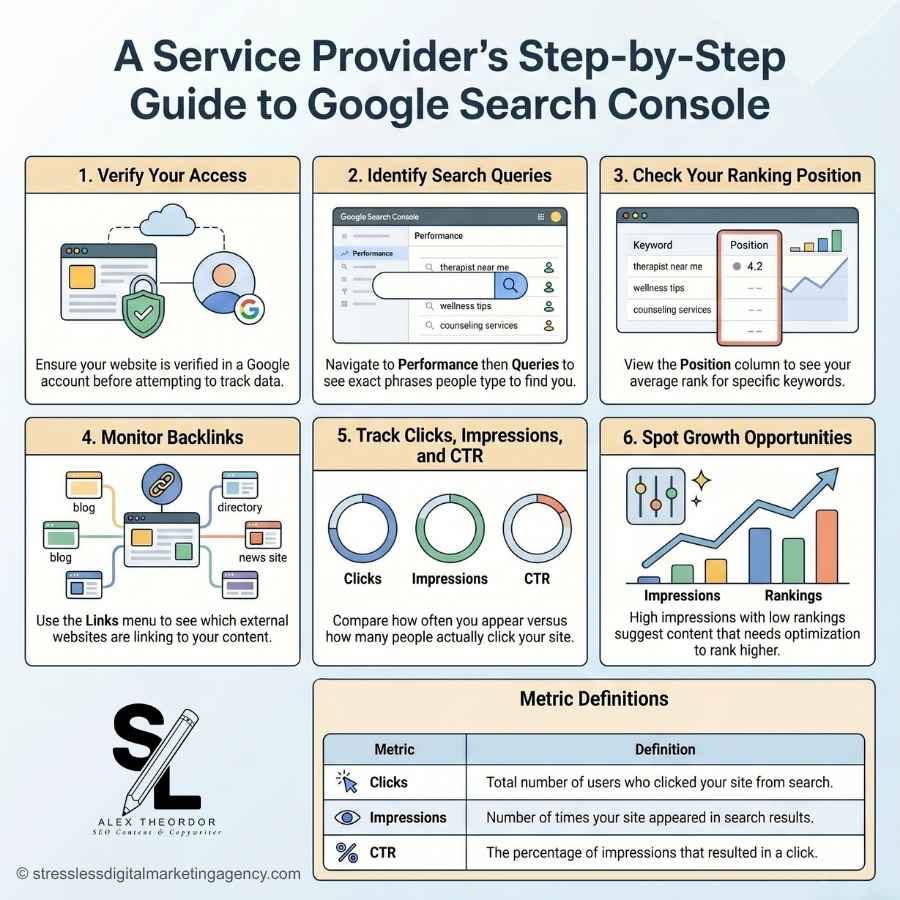
GSC is one of the most powerful — and completely free — tools for tracking how your site performs in search. It shows which keywords bring people to your pages, where those pages rank on Google, who is linking to you, and how often your site appears in search results. For health and wellness service providers, it’s the difference between guessing what’s working and actually knowing.
You don’t need to be a tech expert to use it. This guide walks you through every step, explains what the numbers actually mean, and shows you where to look when something feels off. If you want to understand how Search Console fits into your broader SEO strategy, start with my complete SEO guide for service providers — it gives context for everything you’ll find in this walkthrough.
TL;DR
| Goal | Where to Click |
|---|---|
| Find search queries | Performance → Queries |
| Check ranking position | Performance (Position column) |
| See who’s linking to you | Links → Top linking sites |
| Track clicks + impressions | Performance (table columns) |
| Submit your sitemap | Sitemaps (left menu) |
| Check indexing issues | Pages (left menu) |
| Export data | Export (top right of any report) |
Before You Start: Set Up Correctly
Before any data appears in your account, your site needs to be verified in Google Search Console. Here’s a quick setup checklist:
✅ Have a Google account ready.
✅ Go to GSC and click “Start Now.”
✅ Choose “Domain” as your property type and enter your website URL without www or https.
✅ Follow the steps to add the verification code as a TXT record in your domain registrar.
✅ Allow a few days — possibly up to two weeks — for data to start appearing.
One important note: don’t verify your site before it’s fully live. The moment you create your account, you’re telling Google to come crawl your website. If it’s still under construction, Google indexes an unfinished product and that’s a tough first impression to recover from.
Also — and this matters — sign up with the same Google account you use for Google Analytics. Keeping these connected under one account makes it much easier to cross-reference data later.
Once you’re verified, the very next thing to do is submit your sitemap (more on that in Step 2).
Step 1: Submit Your Sitemap
A sitemap is a behind-the-scenes file that lists every page on your website. It’s not meant for visitors — it’s for search engines. Submitting it tells Google exactly what pages exist on your site so nothing gets missed.
Here’s how to find and submit yours:
- Go to your website and type
/sitemap.xmlat the end of your URL (e.g.,yoursite.com/sitemap.xml). If a page loads with a list of URLs, you’re good. - In Google Search Console, click Sitemaps in the left-hand menu.
- Paste your sitemap URL in the field and click Submit.
- You only need to do this once. Your sitemap automatically updates every time you publish new content.
If your sitemap returns a 404 error, go to your SEO plugin (Rank Math or Yoast) and make sure the sitemap feature is toggled on. If it still doesn’t work, go to Settings → Permalinks in your WordPress dashboard, click Save without changing anything, then try again.
This was the exact fix I needed in May 2025 when my pages weren’t being indexed. Half the battle of ranking is simply making sure Google knows your content exists. If you’ve been publishing consistently without much traffic movement, checking your sitemap connection is always the first place to look — before questioning your copy or your strategy.
Step 2: Find Out What Queries People Use to Find You
This is one of the most useful things in Search Console, and most service providers never look at it.
- In GSC, select your website from the left-hand panel.
- Click Performance — you’ll see a chart and a table below it.
- Choose the Queries tab.
- The list shows the exact phrases people typed into Google before landing on your site.
- Adjust the date range at the top (try “Last 3 months”) to see trends over time.
- Click Export (top right) to download the data into a spreadsheet.
What you’re looking for: Keywords that you didn’t intentionally target but are getting impressions for anyway. These are gold — they tell you what your audience is actually searching for in their own language, not the clinical or marketing language you might use to describe your own work.
For example, if you’re a therapist who specializes in postpartum anxiety, you might find people are finding you by searching “why do I feel anxious after having a baby” — not the technical term you use in your bio. That real-world language belongs in your content.
This is also how I find ideas for new blog posts. I look at what’s already driving impressions and write more content around those topics. Paired with a tool like Answer Socrates, which surfaces the questions people are actively asking in search, your content planning becomes a lot less guesswork.
Pro tip: Sort by “Impressions” to see which keywords appear in search results most often — even if they aren’t generating clicks yet. High impressions with low clicks usually means your title or meta description needs work, not your content itself.“Impressions” to see which keywords get seen most often — even if they’re not yet bringing in clicks.
Step 3: Check Your Average Ranking Position
- Stay in the Performance tab.
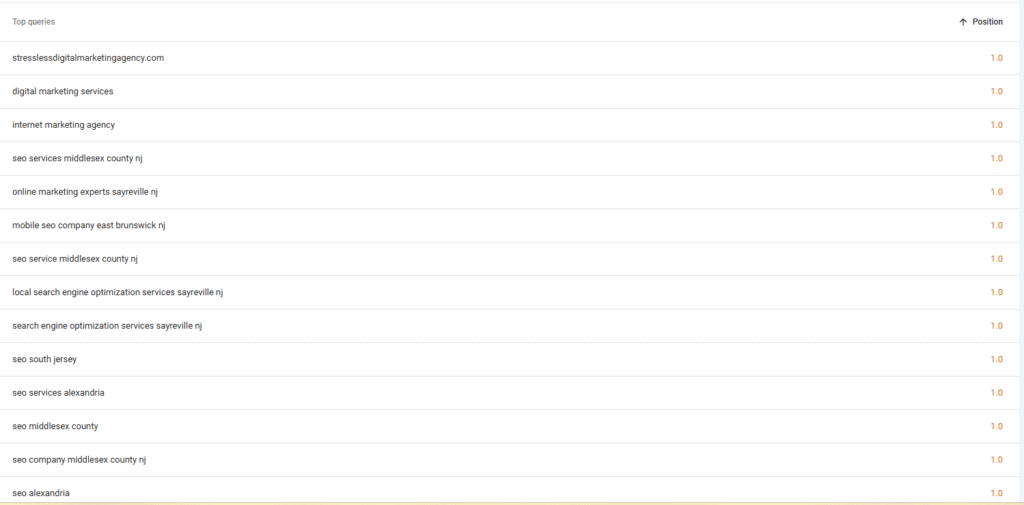
- Look for the Position column — it shows your average ranking spot for each keyword.
- A position of “3.5” means your site typically shows up around third place for that search.
- Click on any keyword to filter results, then switch to the Pages tab to see which specific page is ranking for it.
What the numbers mean in plain language:
- Position 1–3: You’re showing up at the very top. This is where the most clicks happen.
- Position 4–10: First page, but lower down. Still getting seen, but a title or content improvement could push you higher.
- Position 11–20: Second page. This is actually an opportunity zone — a well-optimized update can move these pages onto page one.
- Position 20+: Not visible yet. Either the page needs more work or you need more content building authority around that topic.
Remember: “Average Position” is just that — an average. Your ranking varies by device, location, and search intent. Use it as a directional signal, not an exact score.
The #1 organic result is 10x more likely to receive a click compared to a page in the #10 spot (Backlinko). So even small ranking improvements on high-impression keywords have a meaningful impact on how many people actually reach your site.
Step 4: See Who’s Linking to Your Website (Backlinks)
Backlinks — links from other websites to yours — are one of the strongest trust signals in SEO. They tell Google your content is credible and worth recommending.
Here’s how to find yours:
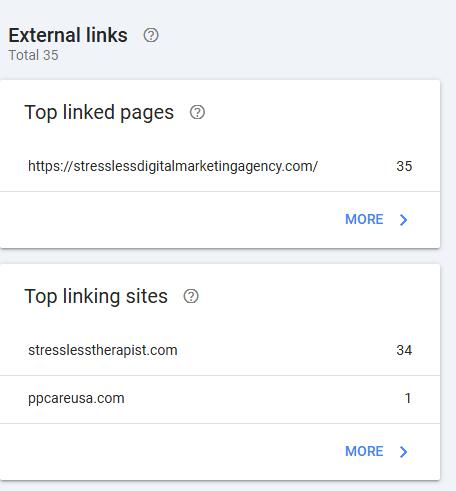
- In the left-hand menu, click Links.
- Under External Links, click Top linking sites to see which websites link to you.
- Click on a specific site to see which of your pages they’ve linked to.
- Click Top linked pages to see which of your pages have the most backlinks overall.
What to do with this information:
If reputable, relevant sites are linking to you, consider reaching out to thank them or explore collaboration opportunities. Relationships built from organic backlinks are worth maintaining. If you notice a high-authority link pointing to an older page, consider updating that page so it’s as strong as possible.
If you have very few backlinks, that’s worth noting. It doesn’t mean your content is bad — it often just means you haven’t promoted it yet. Sharing posts on platforms that support link sharing, getting listed in directories, or writing guest posts are all ways to build this over time.
For a full picture of how backlinks fit into your overall SEO health alongside speed, content, and technical setup, my complete SEO guide for service providers covers the whole ecosystem. If sites are linking to you, consider reaching out to thank them or collaborate again. It’s relationship gold.
Step 5: Check Impressions, Clicks, and CTR
Inside Performance, the top chart and table show four key metrics. Here’s what each one actually means:
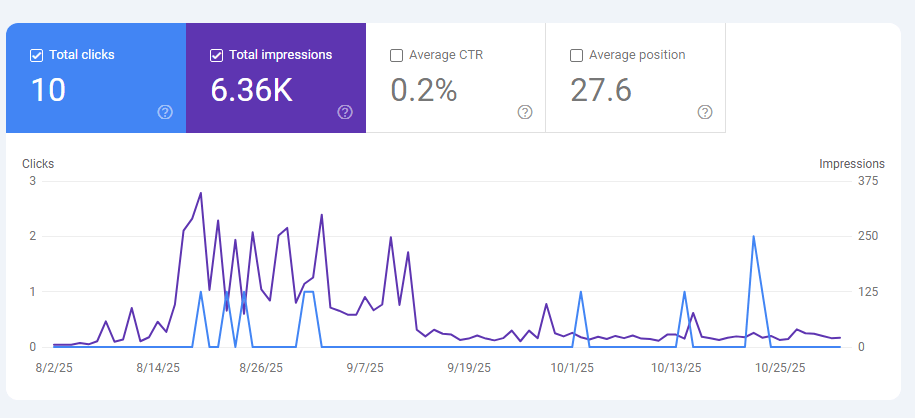
- Impressions — how many times your site appeared in search results. Someone didn’t have to click to count as an impression; your page just had to show up on their screen.
- Clicks — how many people actually clicked through to your site.
- CTR (Click-Through Rate) — the percentage of impressions that became clicks. If a keyword shows 1,000 impressions and 50 clicks, your CTR is 5%.
- Average Position — your typical ranking position for each query.
How to read these together:
A high impression count with a low CTR tells you people are seeing your page in search but not clicking. That’s usually a title or meta description problem — your content might be great, but the headline isn’t compelling enough to earn the click. A small wording change can have a big impact here.
Low impressions with a reasonable position tells you the keyword is low-volume or your page hasn’t built enough authority yet. This is where consistent blog publishing helps — each post adds topical authority and gradually improves how all your pages perform.
You can also compare time periods (e.g., “Last 28 days” vs. “Previous 28 days”) to see what’s trending up or down. Watching these numbers over time is how you spot what’s working and double down on it — which is a much more effective content strategy than publishing and hoping.

Step 6: Check Your Index Coverage
This step is often skipped and it’s frequently where hidden problems live.
- In the left-hand menu, click Pages (formerly called Coverage).
- Look for any pages listed under “Error” or “Excluded.”
- Common issues to look for:
- “Submitted URL not indexed” — you submitted it in your sitemap but Google hasn’t crawled it yet, or there’s a technical block.
- “Noindex tag detected” — a tag on the page is telling Google not to index it. This is sometimes set accidentally during development and never removed.
- “Crawled but currently not indexed” — Google visited the page but decided not to include it in results. This often signals thin or duplicate content.
- For pages that have been updated and should be indexed, click on the URL and select Request Indexing to ask Google to re-crawl it.
This is the part of Search Console I check immediately whenever a page isn’t gaining traction despite good content. If Google hasn’t indexed the page, no amount of great writing will help it rank. The technical foundation has to be in place first.
If you find indexing issues alongside broken links or crawl errors, my post on how to check for broken links walks through how to clean those up — they’re often connected. You translate your data into strategy, your message into connection, and your visibility into results.
Step 7: Spot Opportunities for Growth
Once you’ve gone through your data, look for these patterns:
High impressions + position 11–20: This is the best opportunity in your account. Your content is almost on page one. A content refresh — adding more depth, improving the intro, strengthening internal links — often pushes these pages over the line. This is exactly what we’re doing with this post right now.
High impressions + low CTR: Your page is being seen but not clicked. Update your title tag and meta description to be more specific and compelling. Ask yourself: does my title answer the question the searcher is asking, or does it just describe what the post is about?
High ranking + very few impressions: You’re ranking well, but for a low-volume keyword. Consider whether there’s a related, higher-volume query you could optimize the same page for, or whether a new post targeting the bigger keyword would serve you better.
Strong backlinks to a specific page: That page already has authority. Build on it — add internal links from that page to your service pages, update the content, and consider creating related posts that link back to it to deepen your topical cluster.
If all of this feels like a lot to manage on top of everything else you’re doing, that’s exactly what I help with. I don’t just write content — I track the data, identify what’s working, and build a strategy around it. My Monthly Analytics Report service connects your Google Analytics and Search Console data into a plain-language monthly summary so you always know what’s happening and what to do next.
Step 8: Keep Tracking Progress
SEO is a long game, and progress usually shows up gradually. Set a calendar reminder to check Search Console once a month. Keep a simple running note of:
- New keywords that have appeared
- Ranking changes on your priority pages
- Pages that are gaining impressions month over month
- Pages that have stalled and might need a refresh
Over time, you’ll start to see the story of your website’s growth. You’ll recognize which content is resonating, which topics your audience keeps coming back to, and where the next opportunity is.
This is also how I know that publishing consistently — even when it feels like nothing is happening — is the right move. My first website took about a year to reach 800 views a month, starting from zero. The data in Search Console is what showed me it was working long before the traffic felt significant. If you want to understand what a realistic growth curve looks like, my post on how long SEO takes to work sets honest expectations.
Final Thoughts
Google Search Console can look intimidating at first glance, but once you know where to click, it’s like finally turning on the lights in a room you’ve been navigating in the dark. Every click, impression, and keyword is a signal. Your data is telling you a story — the question is whether you’re reading it.
If you’re sitting at position 11 or 12 on a keyword you care about, that’s not failure. That’s almost there. A stronger intro, better internal linking, a more specific title, a few more related posts — those are the things that move pages from invisible to found.
Understanding your data is step one. The second step is making sure the content and copy on those pages is actually doing its job when people arrive. That’s the piece I can help with. Download my price and service guide to see exactly how I work with service providers to turn Search Console insights into content that converts.
Or, if you’d rather hand off the data monitoring entirely, take a look at my Monthly Analytics Report service — I do the reviewing, you get the plain-language summary.
Ready to stop guessing? Start by grabbing the free freebie: Stop Panicking When Clients Graduate: Your Website’s Guide to Organic Inquiries